
| ARC Support
Action plans
| Previous Page | Back to list of all ePAD Guides | Next Page |
If you have identified any professional values that need to be developed at the Mid-Point Interview, or you have other concerns regarding your student’s practice, you should create an action plan to target those concerns so that your student has the opportunity to address them before their final interview. If you need any help or support with this please contact your Coach in Practice by emailing [email protected]
To create an action plan for your student, you will need to first log into the ePAD using your username and password as described here. Once you have selected your student, you need to click on the three bars menu at the top left of the screen.

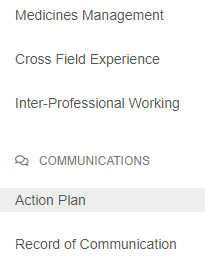
You will then need to click on Action Plan which is towards the bottom half of the menu.
When the action plan screen loads you can create a new action and also review and mark as complete existing actions.
Creating a new action
To create a new action, click on the Create New Action button. This will open the New Action form for you to complete as below.
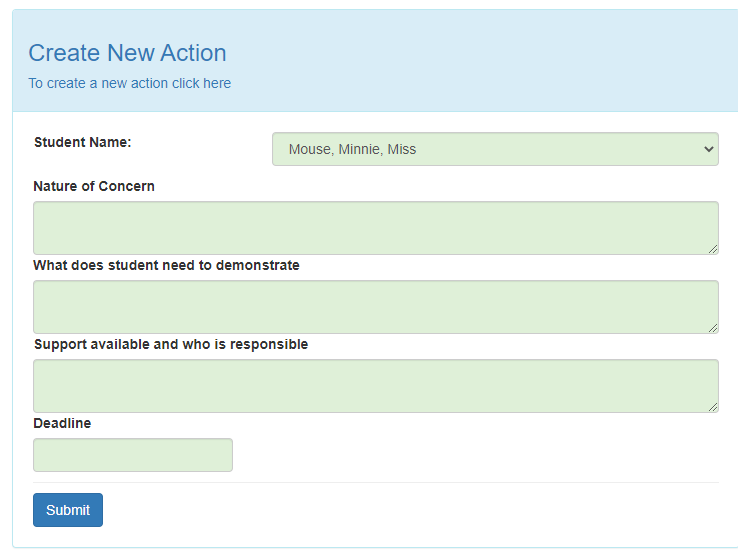
You should first check that the correct student name is displayed at the top of the form and then you can proceed to complete the form by filling out each of the green boxes. Please ensure that all boxes are filled out and that you have entered a deadline date which should be in the format dd/mm/yyyy e.g. 27/02/2021.
Once you have completed the form, you can click the blue submit button to complete the action. If you need to add more actions, you can repeat the process.
Here you can also review the list of existing actions. The status symbol will show red for an action which is not complete and green for an action that has been completed.
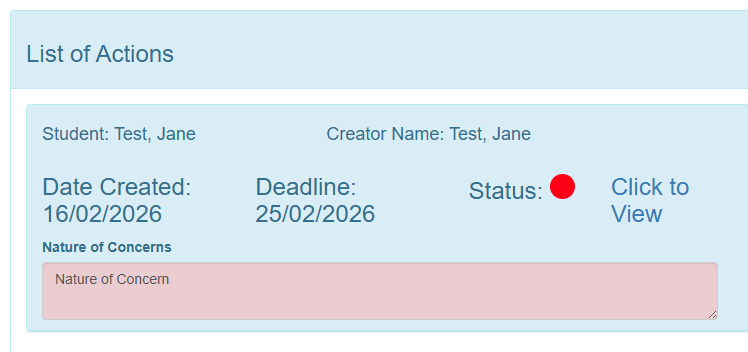
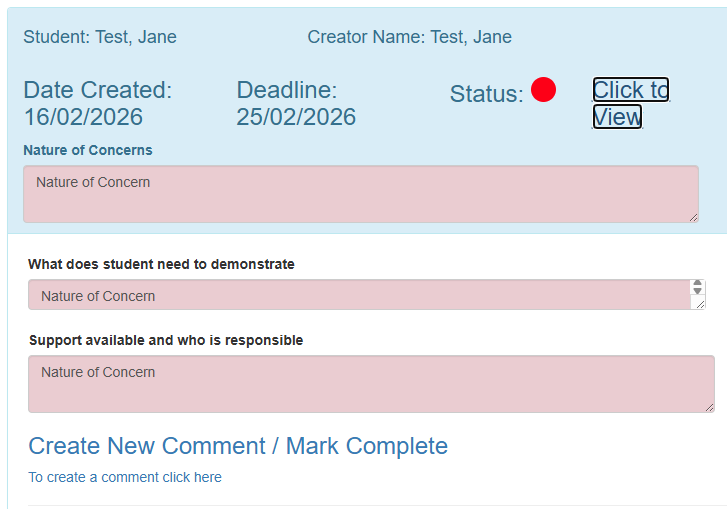
To view the contents of the action plan, click the “Click to View” link. This will expand to show the information in the action plan.
Marking an action as complete
To mark an action as complete, you need to click on the “Mark Complete” link

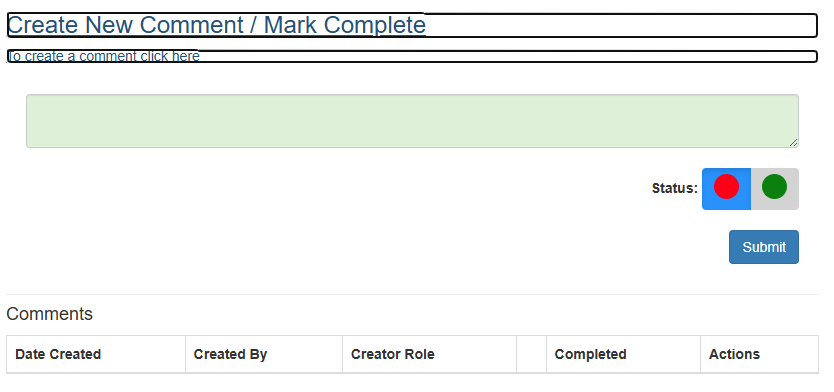
Once you have clicked the link, a box will appear for you to add your comments. Please explain here what the student has done to complete the action.
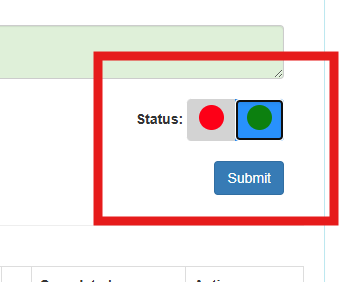
You will need to click the green button and then click submit to mark the action as completed:
Guide to adding an action
Guide to completing an action