
| ARC Support
Reviewing a student’s form
| Previous Page | Back to list of all CPMS Guides | Next Page |
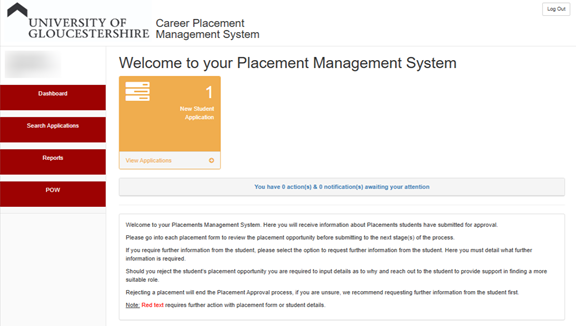
Once you are logged in you will see a number of orange boxes letting you know how many forms you have and which stage of processing they are currently at.
Dashboard
After you have logged into the CPMS platform, you will see the following screen:
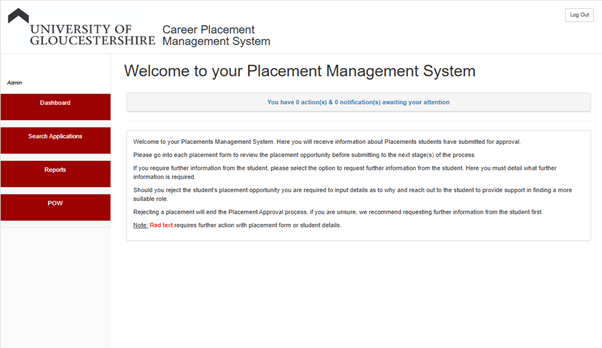
When your students start to submit placement forms, this will load in your dashboard
Search Applicants
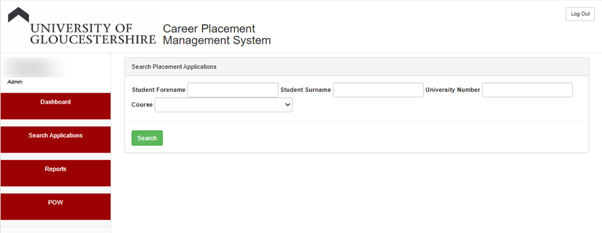
You can use this screen to search for students to see past or current application forms. You can do this via their student number and name. Alternatively. you can select a course from the drop-down.
Reports
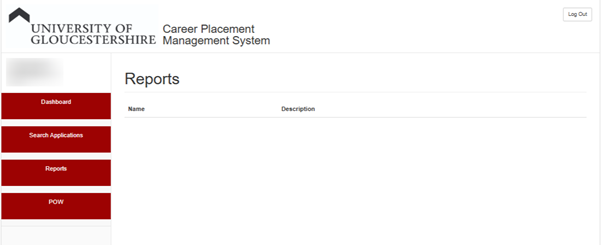
POW (Placements on the Web)
This is the online application where students access their placement details, view attendance, and evaluate their experiences.
Placement Approval Process
Step 1 – viewing and deciding if a student placement form application can be approved.
Once a student has submitted a Placement Approval Form, you will receive an email notification from [email protected].
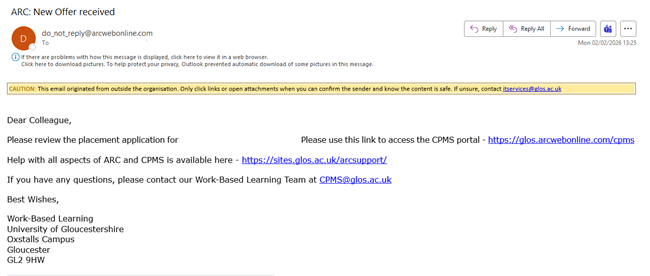
You will then need to log in CPMS, and your dashboard will have updated to show this new application. Click View Applications.
Once you have clicked on this they new application will load at the bottom of your current screen
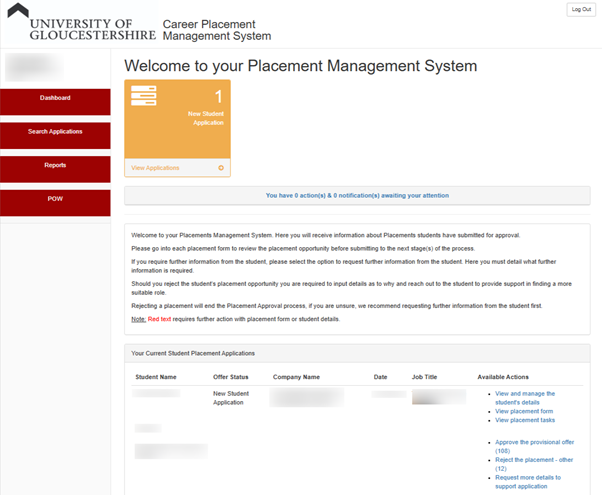
You will then have 6 Available Actions to choose from
- View and manage the students’ details – This will let you view the student’s basic profile, which includes their name, personal email address and whether they are an international student or not. You can also view any documentation the student has uploaded here, such as a DBS.
- View placement form – View the student’s placement application form.
- View Placement Tasks – View any other details or notes the student would like to inform you of
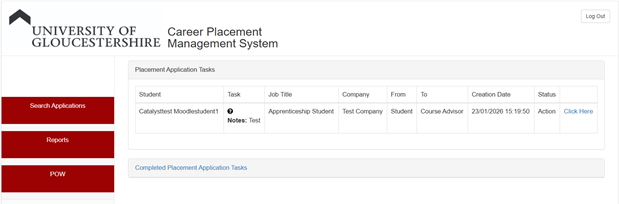
The next three options are what you can action for the placement form
- Approve the provisional offer – This provisionally approves the placement and allows the application to move on to the next step – The health and safety form to send to the placement provider. Commentary is not required
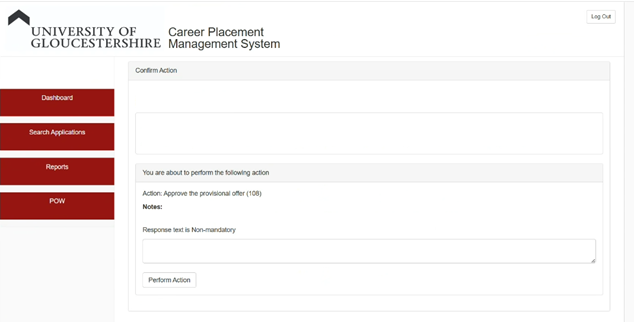
- Reject the placement – Rejects the placement and allows you to add commentary to why this is rejected. This will then be emailed to the student
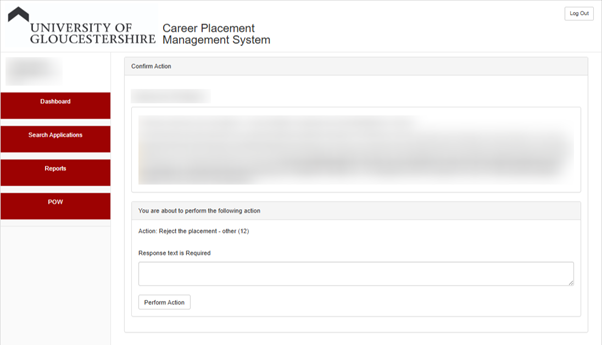
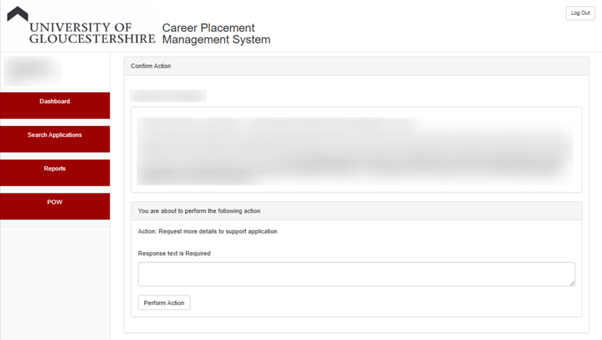
- Request more details to support application – This is to be used if information is missing from the application or you need to clarify something. It allows the student to go back into their application form and edit anything that could be incorrect or provide further documentation or notes. This can go back and forth many times as necessary.
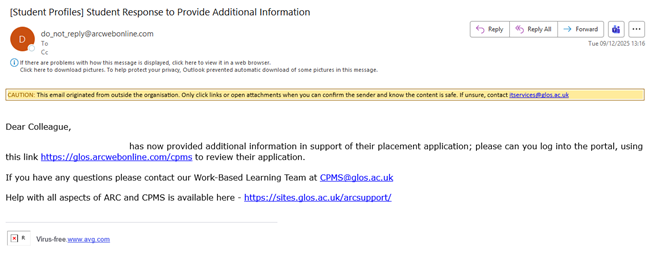
Each time a student provides more information, you will receive an email notification from [email protected]
Step 2 – Send the Health and Safety form
Once you have provisionally accepted the student’s approval form you will then ned to send the health and safety form to the placement provider.