| ARC Support
Entering and updating your profile details
| Previous Page | Back to list of all ARC CPMS Guides | Next Page |
After you have logged into the CPMS platform, you will see the following screen:
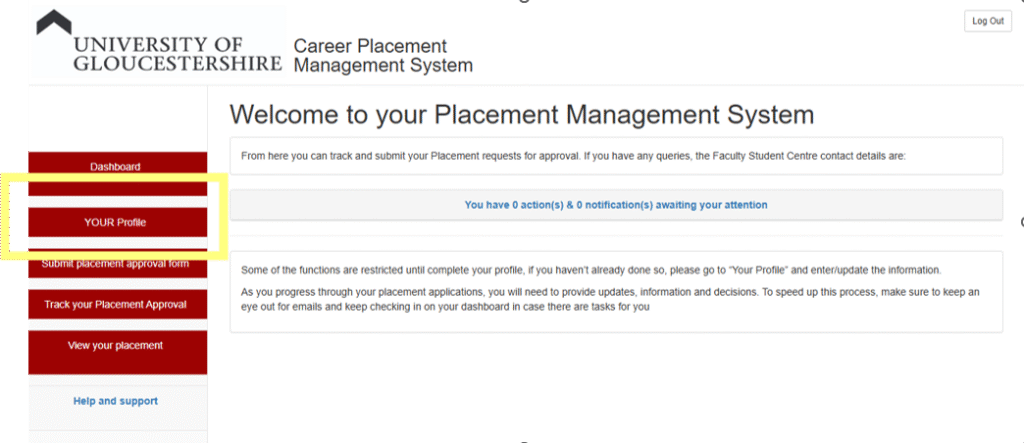
Click on the “YOUR Profile” link to add your personal information. You will need to add the following details:
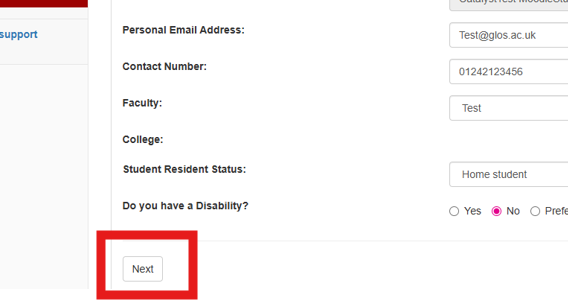
- Personal Email Address
- Contact telephone Number
- Faculty – please select your subject (relating to the placement application) from the drop-down list
- Resident Status – please select home or international student
- Disability status
Once you have completed all of the required details, please click next at the bottom right of the screen
The next stage is to upload any supporting documents. These may be documents that have been requested by your potential placement or by your academic module tutor. Examples include a CV or covering letter. Please note that documents must be in either PDF, JPG or JPEG format; you cannot upload a Word document.
To upload a document, click on the “Choose file button and browse your computer for your file.
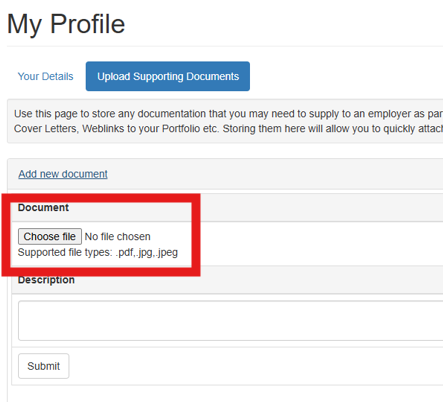
Once you have chosen the file, please add a clear description of the document in the description box and then click the submit button to save the file to your profile.
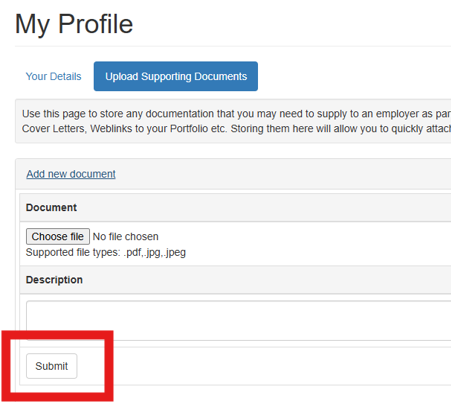
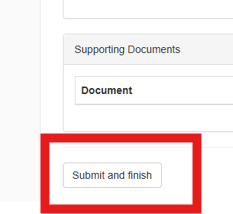
You can add as many documents as needed in this section. Once you have added all the documents you wish to add, click Submit and Finish